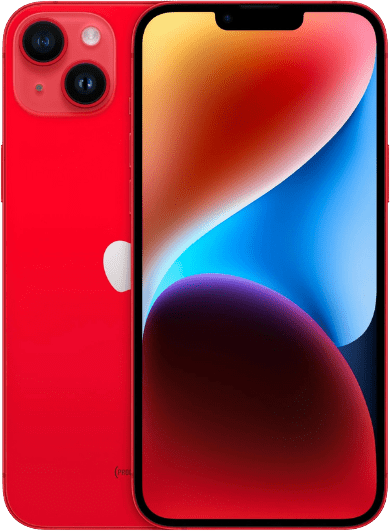
OLED screens, a prominent feature in the latest iPhone models, deliver vibrant colors and deep blacks but are susceptible to burn in. Screen burn in occurs when static images are displayed for extended periods, leading to permanent discoloration and uneven wear on the OLED panel. Common causes include static images, high screen brightness, and unvaried content. This guide will help you understand and prevent OLED screen burn in on your iPhone, ensuring your device maintains its optimal picture quality and display quality.
Common Causes of iPhone OLED Screen Burn In
OLED burn in is a gradual process where static images cause certain pixels to degrade faster than others, resulting in permanent “ghost” images or image persistence on the screen. Here are the main causes:
- Static Images: Frequently viewing static images like channel logo, icons, navigation bars, and widgets can cause burn in over time. These elements remain in the same position, causing continuous use of specific pixels and wearing them out faster.
- High Screen Brightness and OLED Light Settings: Prolonged exposure at high brightness levels or OLED light settings can accelerate pixel wear, increasing the risk of burn in.
- Extended Periods of Unvaried Content: Watching the same type of content for several hours, such as a news ticker or video game HUD, can lead to uneven wear and burn in issues.
Understanding these causes helps in adopting preventive measures to protect your iPhone’s OLED screen from burn in.
Preventing OLED Burn In on Your iPhone: Effective Strategies
Preventing OLED burn in involves a combination of usage habits and leveraging built-in iPhone features. Here are effective strategies to mitigate this issue:
- Reduce Screen Brightness and OLED Light: Lowering the brightness and OLED light can significantly slow pixel degradation. Adjust the brightness to a comfortable level that doesn’t strain your eyes or the phone screen.
- Enable Auto-Brightness and Auto Lock: These built-in features adjust brightness based on ambient light and lock the screen after a few hours of inactivity, helping to minimize the risk of burn in by avoiding excessively bright screen settings and prolonged exposure.
- Enable Screen Savers and Pixel Shift: Dynamic screen savers and pixel shift features prevent static images from being displayed for too long, reducing the risk of burn in and uneven wear.
- Rotate Apps and Content: Regularly change the content and apps you use to avoid prolonged display of static elements. This practice ensures even pixel usage across the OLED panel.
- Use Wallpapers that Change and Use Dark Mode: Opt for dynamic wallpapers that change periodically and enable dark mode to reduce pixel usage and overall screen brightness, preserving the OLED technology and picture quality.
Optimizing iPhone Display Settings to Reduce Burn In Risk
Adjusting display settings is crucial in reducing the risk of OLED burn in on your iPhone. Here’s how you can optimize your settings:
- Activate Dark Mode: Dark mode reduces the amount of light emitted, which can help prolong the life of OLED pixels. This setting is especially effective in reducing the strain on the display and preventing burn in issues.
- Shorten Screen Timeout: Set the screen timeout to a shorter period to ensure the display turns off when not in use. This simple adjustment can prevent the same image from causing burn in.
- Use Night Shift and Reduce White Point: Night Shift adjusts the screen to warmer colors during the evening, which can be less taxing on OLED pixels. Lowering the white point dims bright colors, helping to prevent pixel burnout and extend the screen’s lifespan.
Leveraging Built-in Features to Mitigate Burn In on iPhones
iPhones come with several built-in features designed to help mitigate OLED screen burn in:
- True Tone: Adjusts the screen’s color balance to match ambient lighting, reducing eye strain and potential burn in. It ensures the display adapts to your environment, providing a more natural viewing experience.
- Auto-Lock: Set to a short duration, minimizing the time static images are displayed and reducing the risk of burn in.
- Reduce Motion: Minimizes the parallax effect of icons and alerts, preventing static images from lingering on the screen for too long.
Does Dark Mode Help Prevent Burn In on iPhones?
Yes, dark mode can help prevent OLED burn in on iPhones by significantly reducing the overall light output from the screen. This feature turns the interface darker, which uses fewer bright pixels, thereby reducing the wear on the OLED display. This is particularly effective on models like the iPhone X, iPhone 15, and 15 Pro Max.
Dark mode changes the background color of the interface to black, which helps in two ways:
- Reduced Pixel Usage: Darker pixels use less power, decreasing the wear on the screen.
- Lower Screen Brightness: The overall brightness of the screen is reduced, which further protects against burn in.
Tools to Combat Burn In
Auto-Brightness and screen timeout settings are essential tools in combating OLED burn in:
- Auto-Brightness: Automatically adjusts the screen brightness based on surrounding light, maintaining optimal brightness levels without overtaxing the pixels.
- Screen Timeout: Ensures the display turns off after a few hours or less when not in use, reducing the likelihood of burn in from static images.
Usage Habits to Minimize Burn In
In addition to adjusting settings, adopting certain usage habits can further minimize the risk of OLED screen burn in:
Vary Content: Frequently switch between different apps and screen layouts to prevent static images. Regularly changing the content displayed on your screen ensures even pixel usage.
Avoid Long Periods of Static Display: Be mindful of leaving your iPhone on with a static screen for several hours or more. Use screen savers or turn off the display when not in use.
Use Dynamic Wallpapers and Use Dark Mode: Opt for wallpapers that change periodically and enable dark mode to keep the display dynamic and reduce pixel wear.
Regularly Restart Your Device: Restarting your iPhone periodically can help clear any temporary image persistence and reset the display.
Caring for Your iPhone Display: A Long-Term Approach
Taking a proactive approach to care for your iPhone’s OLED display can help extend its lifespan and maintain optimal picture quality:
- Regular Cleaning: Clean your screen regularly to avoid build-up that can affect display quality. Use a soft, lint-free cloth to gently wipe the screen.
- Use Protective Cases and Screen Protectors: Protect your device from physical damage that might otherwise affect the display.
- Stay Updated: Keep your iPhone updated with the latest software to benefit from the newest display optimization features.
- Monitor Display Settings: Periodically review and adjust your display settings to ensure they are optimized for the best performance and longevity of your OLED panel.
- Authorized Service Center: For any burn in issues or screen repair, visit an authorized service center to ensure proper care and genuine parts.
The 3-Step Process to Prevent OLED Burn In
- Optimize Settings: Utilize features like dark mode, auto-brightness, pixel shift, and screen timeout to reduce the strain on your OLED display.
- Adopt Healthy Usage Habits: Vary the content displayed on your screen, avoid static images for prolonged exposure, and use dynamic wallpapers.
- Regular Maintenance and Proper Care: Keep your iPhone clean, use protective accessories, stay updated with the latest software, and seek help from authorized service centers if needed.
By understanding and implementing these strategies, you can effectively prevent OLED screen burn in on your iPhone. Whether it’s adjusting your display settings, leveraging built-in features, or adopting better usage habits, these steps will ensure your device’s screen remains in top condition for a longer period. Remember, iPhone Ambulance is here to help with any screen repair needs, providing quick, reliable, and on-demand services that come to you, ensuring your device is always at its best.
If you have any questions or need further assistance with your iPhone, feel free to leave a comment below or contact us directly. Don’t forget to share this post with others who might benefit from these tips!
Fill out the form below to book your repair now and let us restore your iPhone to its prime condition.
Related Posts
Mobile Phone Repair Ipswich: Complete Guide to Fast & Reliable Service
Key Takeaways Professional mobile phone repair services available at Riverlink Shopping Centre with 30 minutes to 2 hours turnaround time Competitive pricing ranges from $79 to $539 depending on device [...]
Phone Repair Marsden: Your Trusted Mobile Phone Expert
When it comes to phone repair Marsden residents can rely on, finding a professional service that combines expertise, reliability, and affordability is essential. At iPhone Ambulance, we provide top-notch phone [...]
Mobile Phone Repair Forest Lake: Your Ultimate Guide to Quality Service
If you're searching for reliable mobile phone repair Forest Lake, you've come to the right place. Whether you own an iPhone, Samsung Galaxy, iPad Air, or other smartphones and tablets, [...]